Reviving an old Brother printer with a Raspberry Pi Zero 2 W
Three years ago, I wanted to buy a printer for the house. I found a listing for an old Brother HL-1110 on Facebook Marketplace for something like twenty bucks. Brother printers (especially old ones) have earned a reputation for being buy-it-for-life machines, so I ended up getting that old boy. It’s been chugging along on the toner it came with ever since.
The one thing I really wished it had was network printing. It gets tedious having to grab a laptop, or anything else I can plug into it over USB, just to print a few documents.
So, of course, I turned this into a weekend project.
A breath of new life
The plan was to use a small device that would connect to the printer over USB, and also join the home network so it could advertise the printers attached to it (in this case, just the Brother HL-1110).
By the end of it all, I had this:
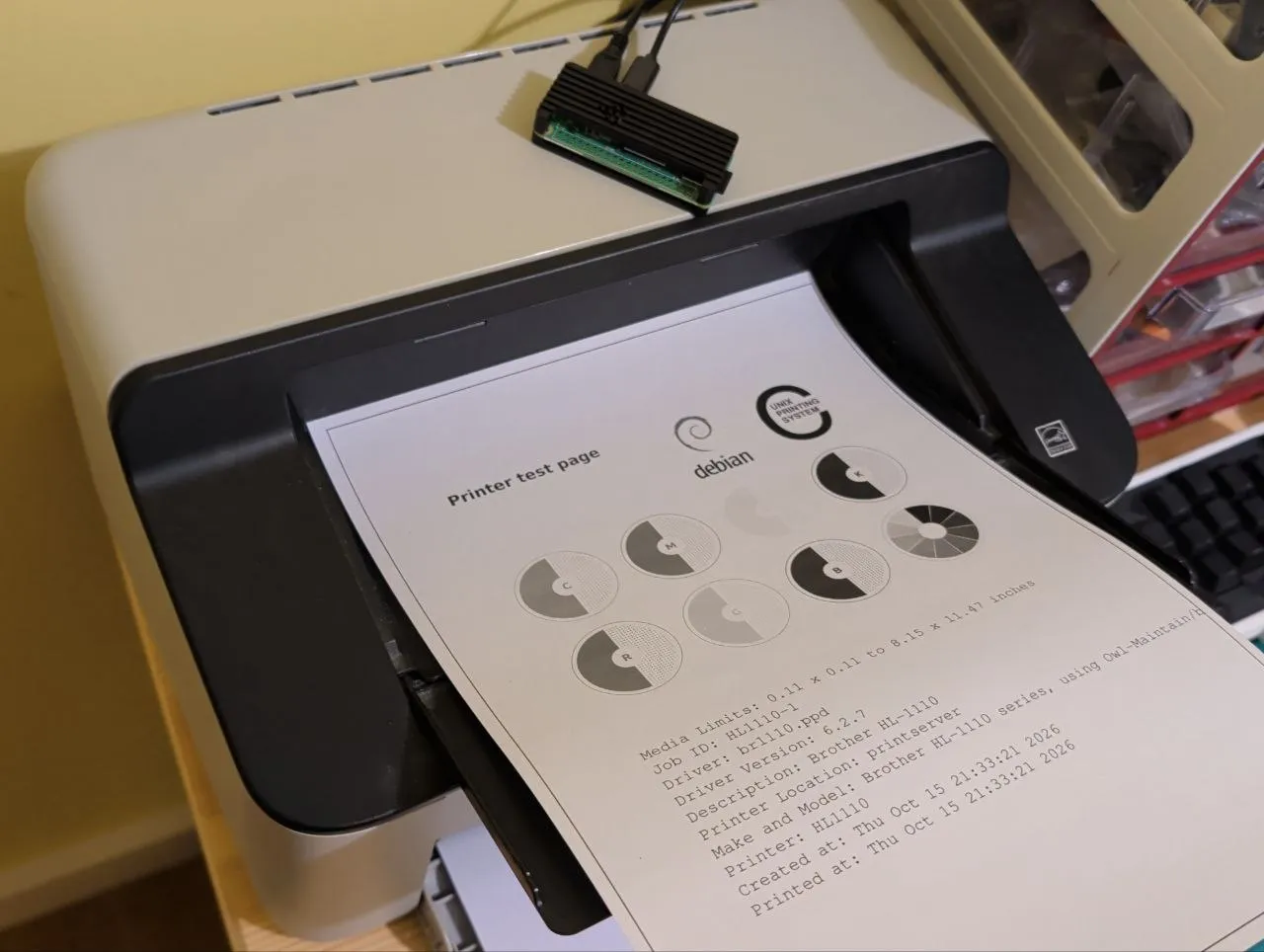
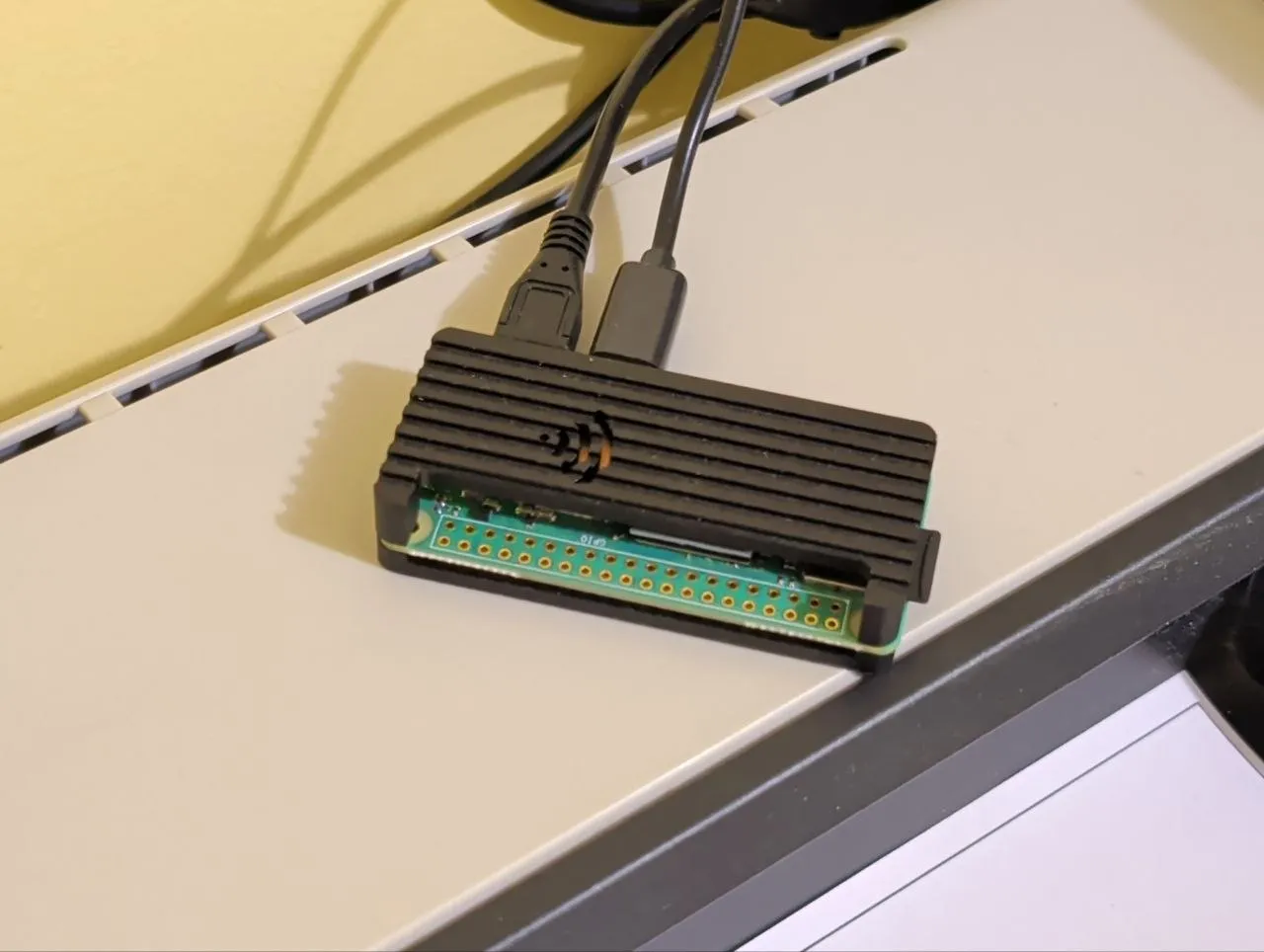
I had a spare Raspberry Pi Zero 2 W gathering dust in a drawer somewhere, so I decided to see if it could handle the job on its own. It did, surprisingly well!
Setting it up was simpler than I expected, too. This Pi was only ever going to do one thing, so I flashed it with Raspberry Pi OS Lite. The Raspberry Pi Imager makes it easy to flash the OS onto the microSD card, and lets you preconfigure the hostname, Wi-Fi and SSH before the first boot. You can also use something like Rufus if you’re comfortable with it, but then you’ll have to set up Wi-Fi and SSH on the card yourself.
For the purposes of this post, let’s assume I named my Pi printserver,
so it’s reachable on my home network at printserver.local.
Once the Pi has booted up, you should be able to SSH into it with something like:
ssh my-user@printserver.localConfiguring CUPS on the Pi
CUPS is what turns the Pi into a print server. It receives print jobs from other devices on the network and passes them on to the printers attached to it.
Since my printer is quite old, it also needs a specific driver so that the Pi can talk to it properly.
Luckily, there’s an open-source one for Brother laser printers called brlaser.
# Install the necessary software
sudo apt update
sudo apt install -y cups printer-driver-brlaser
# Allow our current user to manage printers
# (log out and back in for this to take effect)
sudo usermod -aG lpadmin "$USER"
Next, we register the printer with CUPS. For that, CUPS needs to know how the printer is connected to the Pi, so make sure it’s plugged into the Pi over USB and switched on. On the Zero 2 W, that means the micro-USB port marked USB (not PWR IN), through an OTG adapter.
# Find the printer's USB address
/usr/sbin/lpinfo -v | grep usb
This should print a line like this, with your printer’s serial number:
direct usb://Brother/HL-1110%20series?serial=ABCD12345This confirms that the Pi can see the printer at that USB address. We use the address to register the printer:
/usr/sbin/lpadmin -p HL1110 -E \
  -v "usb://Brother/HL-1110%20series?serial=ABCD12345" \
  -m drv:///brlaser.drv/br1110.ppd \
  -D "Brother HL-1110" \
  -L "Home Office" \
  -o printer-is-shared=true \
  -o PageSize=A4
Change the values of these flags to suit your setup:
| Flag | Description |
|---|---|
-p | A short name for the printer, used in its network address. |
-E | Enables the printer so it starts accepting jobs. It has to come after -p. |
-v | The printer’s address (see above). |
-m | The driver to use for the printer. More on this below. |
-D | The display name other devices will see. |
-L | Where the printer is. Optional. |
-o printer-is-shared | Shares the printer with other devices on the network. |
-o PageSize | The default paper size, e.g. A4 or Letter. |
Finally, tell CUPS to share it!
/usr/sbin/cupsctl --share-printersFrom here, it’s fine to just leave the Pi running indefinitely. If it ever reboots, CUPS starts back up on its own.
Using the printer
Once all of that is done, you should be able to add the printer on any of your devices.
Windows 10 / 11
Windows needs to discover the printer on the network. Let’s nudge it along:
- Go to Settings → Bluetooth & devices → Printers & scanners (on Windows 10: Settings → Devices → Printers & scanners).
- Click Add device (on Windows 10: Add a printer or scanner).
- Select the printer (in my case, Brother HL-1110 @ printserver) and click Add.
Android
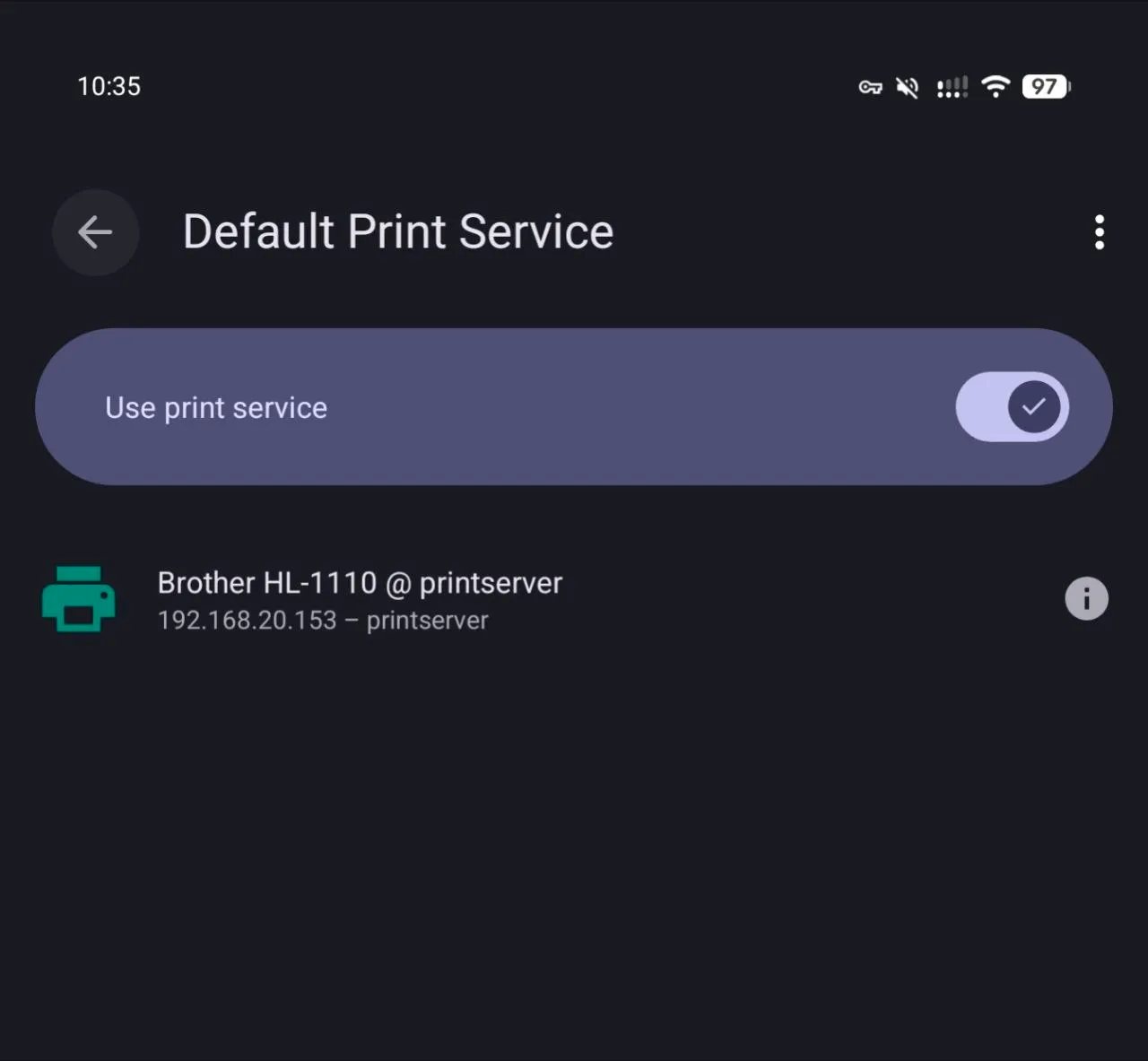
Android’s built-in printing should support it, but make sure that the Default Print Service is turned on. On most phones, it’s in Settings → Connected devices → Connection preferences → Printing.
The printer should show up once that’s done.
iPhone / iPad
There’s nothing to set up. The printer advertises itself as an AirPrint printer, so it should work out of the box.
macOS
macOS sees the printer too, but you need to add it once:
- Go to System Settings → Printers & Scanners.
- Click Add Printer, Scanner, or Fax….
- Select the printer (in my case, Brother HL-1110 @ printserver) and click Add.
Linux
Your Linux distro is likely already running CUPS; if not, just install and start it. CUPS on your machine will automatically pick up any printers shared on your network. You can check by running:
lpstat -eWhat if I have a different printer?
The steps stay mostly the same. We just need to sort out which driver to install.
Modern printers (roughly 2015 onwards)
Your printer likely supports driverless printing (IPP Everywhere or AirPrint) over USB, also known as IPP-over-USB. In this case, you won’t need a printer-specific driver, but the Pi does need to be able to speak IPP over USB:
# Install the necessary software
sudo apt update
sudo apt install -y cups printer-driver-brlaser
sudo apt install -y cups ipp-usb
Then, instead of looking for the printer’s USB address, look for its IPP address:
# Find the printer's IPP address
/usr/sbin/lpinfo -v | grep usb
/usr/sbin/lpinfo -v | grep dnssd
We use that address when registering the printer, and swap the driver for everywhere.
The address starts with dnssd:// because ipp-usb advertises the printer on the network for CUPS to find.
Assuming your printer shows up at dnssd://My%20Modern%20Printer._ipp._tcp.local/?uuid=0e3a1c2b-5d4f-4a6e-9b8c-7d1e2f3a4b5c:
/usr/sbin/lpadmin -p MyPrinter -E \
  -v "usb://Brother/HL-1110%20series?serial=ABCD12345" \
  -v "dnssd://My%20Modern%20Printer._ipp._tcp.local/?uuid=0e3a1c2b-5d4f-4a6e-9b8c-7d1e2f3a4b5c" \
  -m drv:///brlaser.drv/br1110.ppd \
  -m everywhere \
  -D "My Modern Printer" \
  -L "Home Office" \
  -o printer-is-shared=true \
  -o PageSize=A4
-m everywhere tells CUPS to ask the printer
what it supports, so we don’t have to provide a specific driver.
Older printers
For printers that don’t support IPP-over-USB, Debian has open-source drivers that can run on the Pi’s ARM processor:
| Printer | Package |
|---|---|
| Brother mono lasers | printer-driver-brlaser |
| HP | hplip |
| Samsung and some Xerox lasers | printer-driver-splix |
| Many inkjet printers (Canon, Epson, etc.) | printer-driver-gutenprint |
| Cheap host-based lasers (some HP, Minolta, Oki) | printer-driver-foo2zjs |
If you’re not sure, you can try printer-driver-all, which installs most of them,
but as you’d expect, it’s quite a large install.
Once you’ve installed one of the driver packages above, you’ll need to find the exact driver to use.
If you don’t know your printer’s exact model, let the printer itself tell you
(look for the make-and-model line):
/usr/sbin/lpinfo -l --include-schemes usb -vThen list the available drivers with:
/usr/sbin/lpinfo -mThis lists every printer driver available on your Pi, each with a description.
The list can get long, so narrow it down to your model number with grep
(e.g. /usr/sbin/lpinfo -m | grep -i 1110).
On my Pi, this turns up the driver from printer-driver-brlaser that matches my HL-1110:
drv:///brlaser.drv/br1110.ppd Brother HL-1110 series, using Owl-Maintain/brlaser v6.2.7
└────────── driver name ────┘ └──────────────── description ──────────────────────────┘
The driver name is what we give to the -m flag when registering the printer:
/usr/sbin/lpadmin -p HL1110 -E \
  -v "usb://Brother/HL-1110%20series?serial=ABCD12345" \
  -m drv:///brlaser.drv/br1110.ppd \
  -D "Brother HL-1110" \
  -L "Home Office" \
  -o printer-is-shared=true \
  -o PageSize=A4
You might find that several drivers match (especially if you installed printer-driver-all).
In that case, I’d go with a driver written specifically for that brand (e.g. brlaser for Brother, splix for Samsung)
over a general one like Gutenprint.